How to Set Up a Home Office in 2026: The Complete Guide
A step-by-step guide to setting up a productive home office in 2026. Covers location, desk choice, ergonomics, lighting, and internet setup.
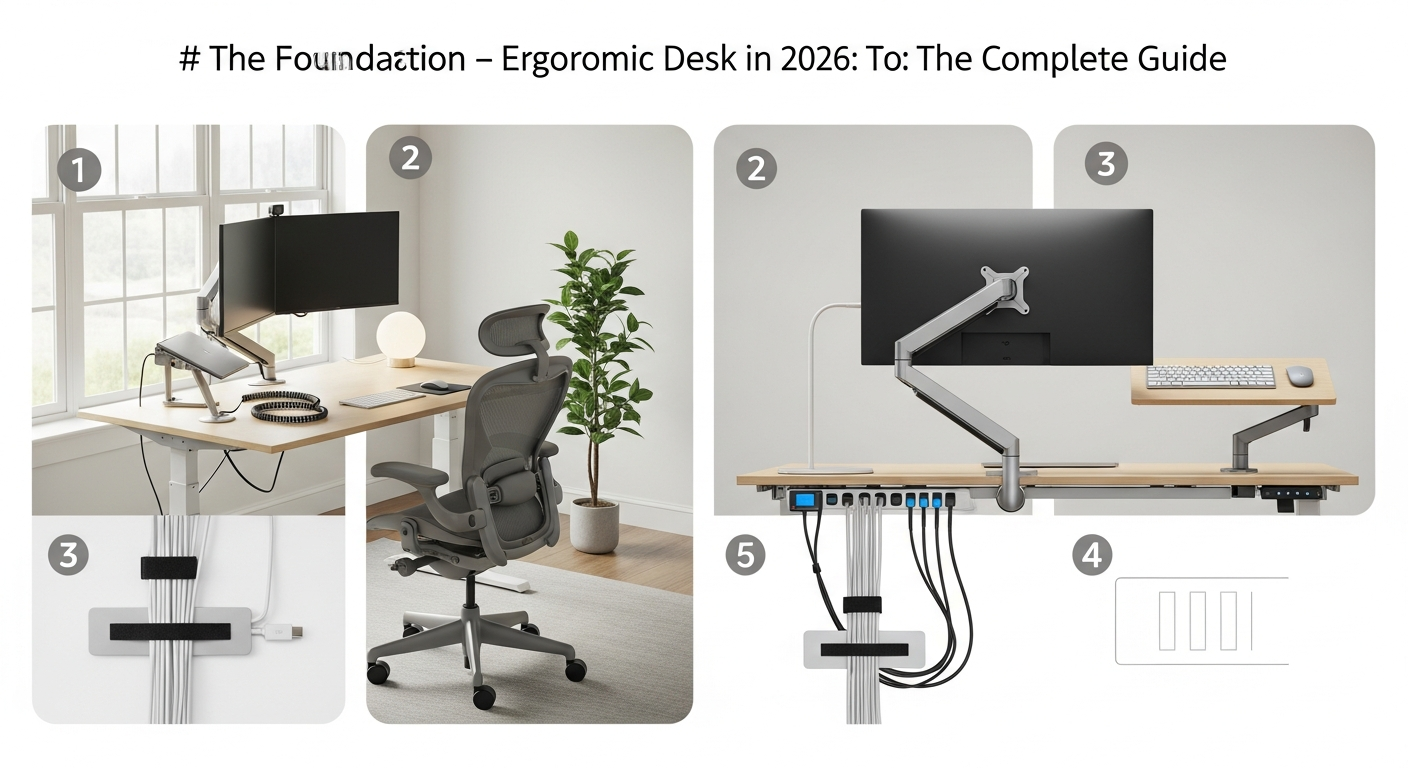
Setting up a home office for the first time is an investment in how well you work every day. A good office doesn’t require a large room or a large budget. It requires making the right decisions in the right order. Follow these eight steps and you’ll avoid the most common setup mistakes.
We may earn a commission if you buy through our links.
Step 1: Choose the Right Location
The location decision shapes everything else. Prioritize in this order: natural light, door access, and noise isolation.
Natural light from a side window is ideal. Light from behind your monitor creates glare. Light in front of you causes eyestrain. A north or east-facing window gives consistent indirect light without harsh midday sun.
A door you can close is not optional for serious work. Even a curtain or bookshelf divider helps in open-plan spaces. The psychological cue of “entering” and “leaving” the office improves focus and work-life separation.
If you have a choice between a quieter spot and a larger spot, choose quiet every time. You can always manage a small desk. You can’t always manage a noisy environment.
Step 2: Choose the Right Desk
The desk needs to fit your work style, not just your room.
For full-time remote work, a standing desk is the right long-term choice. The FlexiSpot E7 starts at $549 and has the best stability-to-price ratio in its class. The Fully Jarvis at $349 is the budget standing desk option. Both allow smooth transitions between sitting and standing throughout the day.
For a fixed desk, aim for 60 x 30 inches as your minimum surface area. This fits a 27-inch monitor, keyboard, mouse, and a few accessories without crowding. The IKEA LAGKAPTEN on ALEX drawer units is the most popular fixed-desk build for home offices: $220 total, more storage than most purpose-built desks, and a clean white or dark finish.
Desk height matters more than most people realize. For typing comfort, your elbows should sit at roughly 90 degrees when your hands rest on the keyboard. Most standard desks are set at 29-30 inches, which is correct for most people between 5’8” and 6’0”. Adjust accordingly.
Step 3: Chair and Ergonomics
The chair is where most people underinvest. A $100 chair will produce back pain. A $300 chair might not. A $500+ ergonomic chair almost certainly won’t.
The Branch Ergonomic Chair at $429 is the best entry point for proper lumbar support and adjustability. The Herman Miller Aeron (refurbished, size B or C) at $600-800 is the long-term investment.
Set the chair up correctly before you judge it. Seat height: feet flat on the floor, thighs parallel to the floor. Seat depth: 2-3 fingers between the front edge and the back of your knee. Lumbar support: positioned at the natural curve of your lower back. Armrests: forearms horizontal when resting, not pushing your shoulders up.
For people who experience wrist discomfort, add a wrist rest for the keyboard and a vertical mouse like the Logitech MX Vertical. These two additions address the most common peripheral-related injuries.
Step 4: Monitor Setup
Position the top of the monitor at eye level. Your eyes should rest on the top third of the screen when looking straight ahead. This keeps your neck in a neutral position.
Distance matters: arm’s length is the standard recommendation, roughly 24-28 inches. For a 27-inch monitor, this feels right. For a 34-inch ultrawide, you may need to sit slightly further back.
Use a monitor arm like the Ergotron LX instead of the included stand. A monitor arm lets you adjust height, tilt, and depth with one hand. The desk space freed up by removing the stand is significant.
If you use two monitors, center them on your primary screen and angle the secondary at about 30 degrees to the side. Don’t put both monitors directly in front of you: you’ll spend all day turning your head.
Step 5: Lighting
Your desk needs three types of light: ambient, task, and bias.
Ambient lighting fills the room. Avoid overhead lighting directly above your monitor. A floor lamp or LED panel mounted to the side provides even room light without creating a glare source behind the screen.
Task lighting illuminates your desk. The BenQ ScreenBar is the best solution: it clips to the top of the monitor, lights the desk surface directly, and doesn’t create screen glare. No additional desk surface required.
Bias lighting mounts behind the monitor. It reduces the contrast between the bright screen and the dark wall behind it. This contrast is a major source of eye strain during long sessions. An LED strip on the back edge of your monitor provides this. The Govee T2 has an ambient mode that matches the dominant color of the screen.
Step 6: Internet and Connectivity
Wired Ethernet is always better than Wi-Fi. Run a Cat 6 cable from your router to your desk if at all possible. If running cable through walls isn’t practical, a powerline adapter like the TP-Link AV2000 passes Ethernet over your home’s electrical wiring. It’s not as fast as direct cable, but it’s far more stable than Wi-Fi.
If Wi-Fi is your only option, upgrade to a Wi-Fi 6 router and connect your work devices to the 5GHz band only. The 5GHz band is less congested than 2.4GHz. A mesh network with a node near your office improves signal strength in far-from-router rooms.
For video calls: wired Ethernet first. If that’s not possible, a USB Wi-Fi adapter with a dedicated antenna placed on the desk performs better than a laptop’s internal card.
Step 7: Cable Management
Visible cables are the most common reason home offices look unprofessional. Fix this in one afternoon.
Start with a power strip mounted under the desk with a cable tray. Everything plugs into the strip; the strip hides under the desk. Use cable ties or velcro straps to bundle cables running in the same direction. A cable spine runs multiple cables down a desk leg in a single sleeve.
For a desk surface that’s clear of all cables, use wireless peripherals. A wireless keyboard and mouse eliminate two cable runs. A monitor with a built-in USB-C hub reduces the cables between desk and laptop to one.
Color-match cable sleeves to your desk surface: white sleeves on a white desk disappear.
Step 8: Personal Touches
A productive office is also a space you want to spend time in. Add three to five personal objects: a plant, a piece of art, a few books, a small lamp. Avoid more than that. Surfaces that are too decorated become cognitively noisy.
A small plant like a pothos or snake plant improves air quality marginally and improves mood measurably. Keep it on a shelf or windowsill, not on the desk surface.
Keep the desk surface for work only. Everything you need is within reach. Everything you don’t need is in a drawer. The cleaner the desk, the easier it is to start working.
Bottom Line
Chair, monitor, and lighting are the three things that directly affect how you feel at the end of a workday. Prioritize them. Everything else, including the desk, accessories, and decor, is secondary. Build the setup incrementally: start with what you need, upgrade what’s limiting you.
Frequently Asked Questions
- How much does it cost to set up a home office?
- A basic functional home office costs $400-600 for a desk, chair, monitor, and keyboard. A comfortable, ergonomically sound office runs $1,200-2,000. A premium setup with a standing desk, quality chair, and mechanical keyboard sits at $2,500-4,000. You can upgrade incrementally.
- What is the most important piece of furniture for a home office?
- The chair. You sit in it for hours every day. A quality ergonomic chair reduces back pain, improves posture, and maintains its support for years. Most people underinvest in the chair and overspend on the desk. Start with the chair.
- How do I get fast internet in my home office?
- A wired Ethernet connection is the most reliable option. Run a cable from your router to your desk, or use a powerline adapter if running cable isn't practical. If Wi-Fi is your only option, Wi-Fi 6 routers and a dedicated 5GHz band improve speed and stability.
- What temperature and lighting is best for a home office?
- 68-72°F is the optimal temperature range for focused work. For lighting, aim for 300-500 lux on your desk surface. Natural light from the side reduces eye strain. Use warm light (3000K) in the evenings and cooler light (4000-5000K) during daytime work hours.