Mac Mini Desk Setup: Clean, Fast, No Clutter
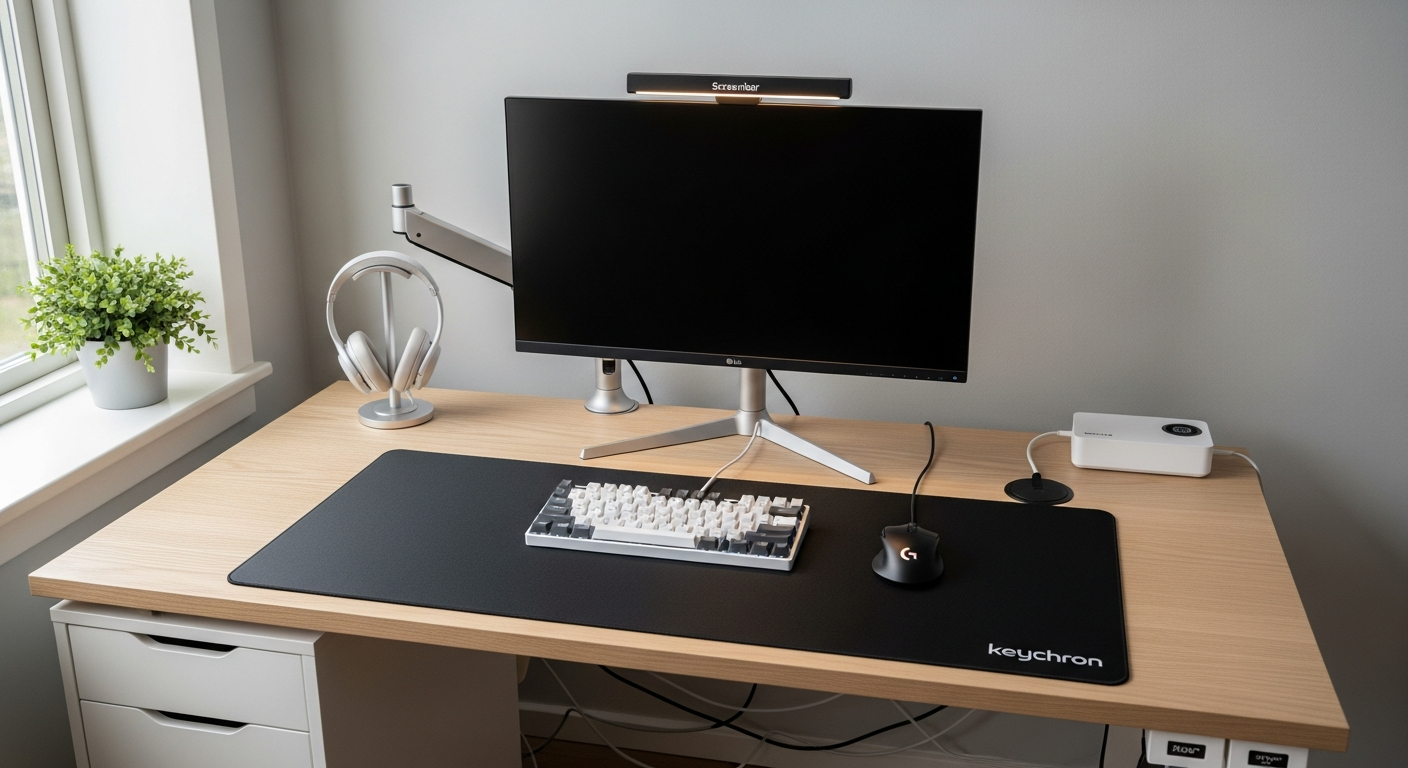
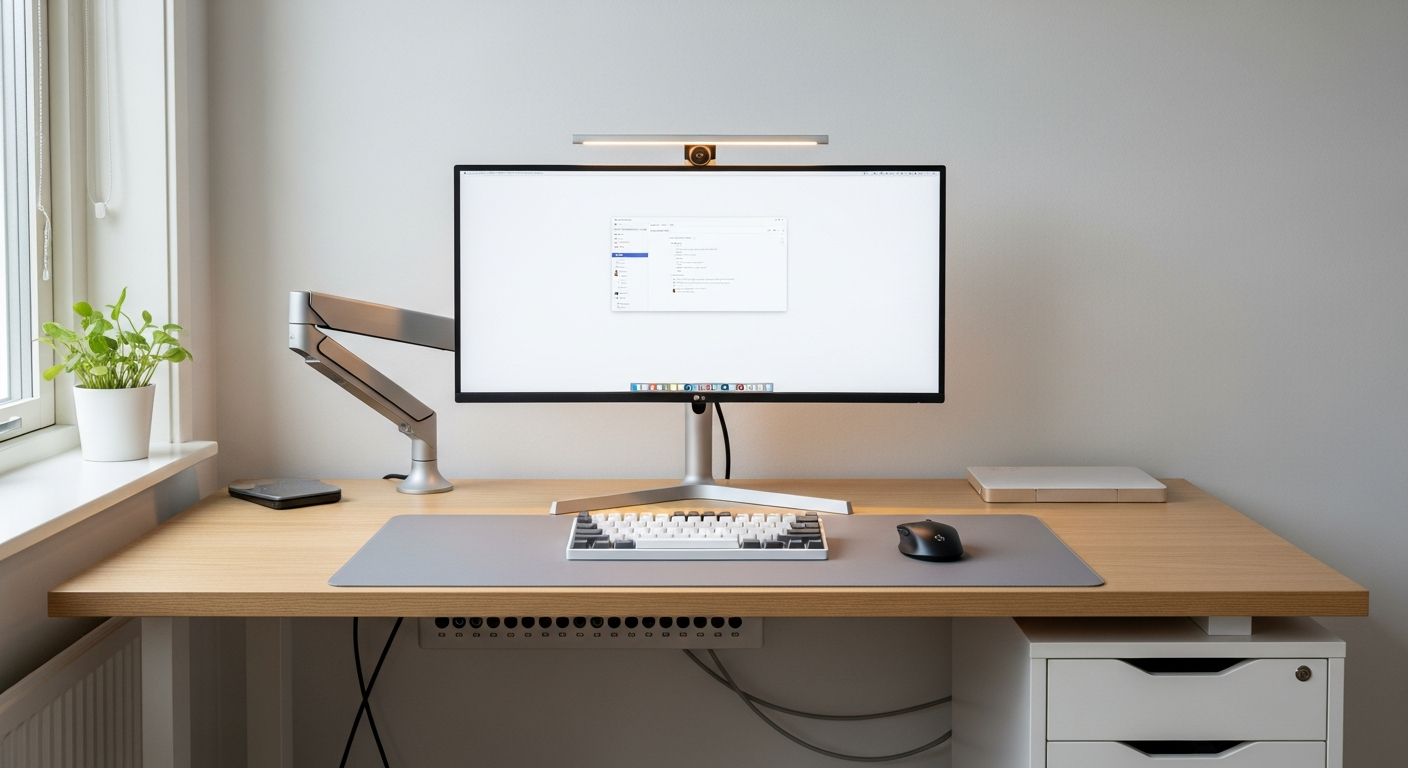
A minimal Mac mini desk setup with a 4K monitor, Keychron keyboard, and hidden Mac mini mount. Total cost: $1,580.
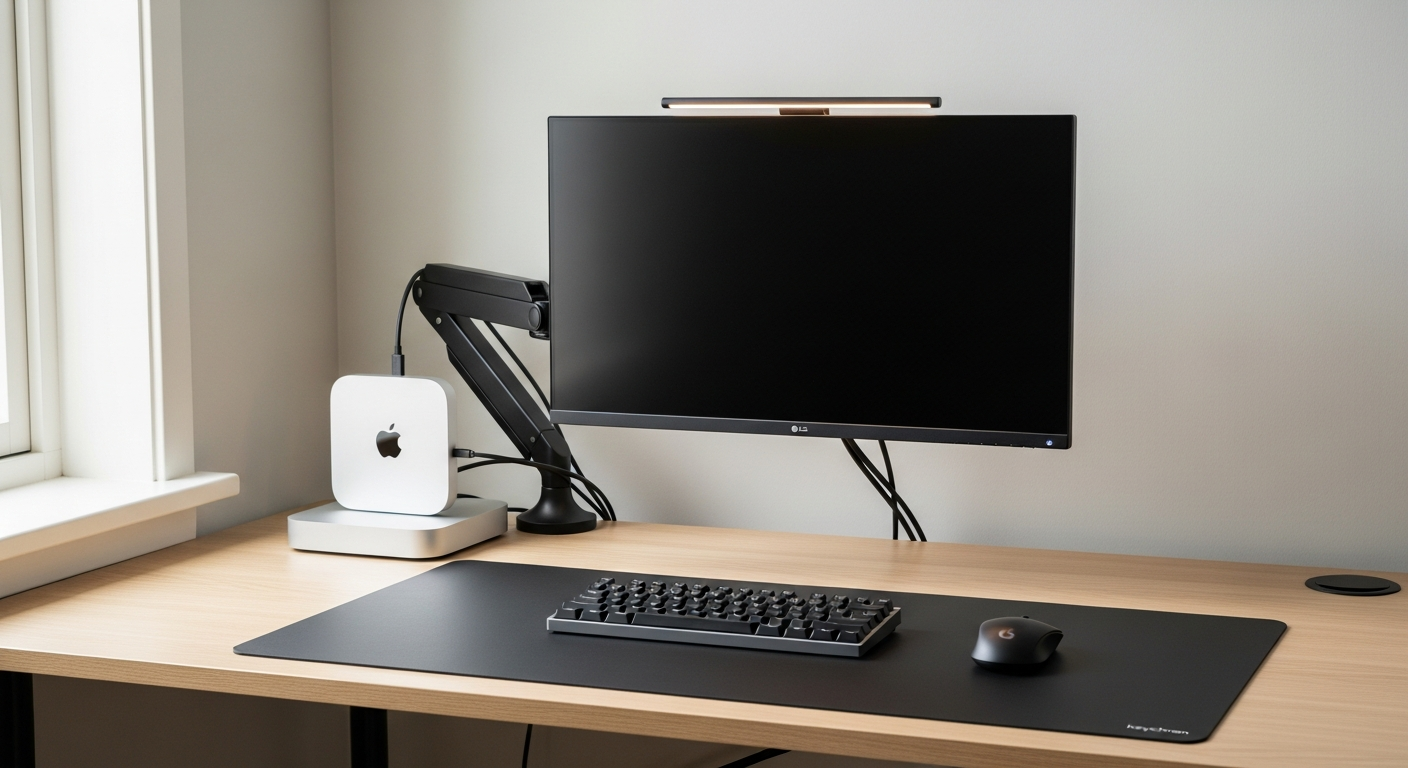
I built this setup around one idea: get the computer off the desk entirely.
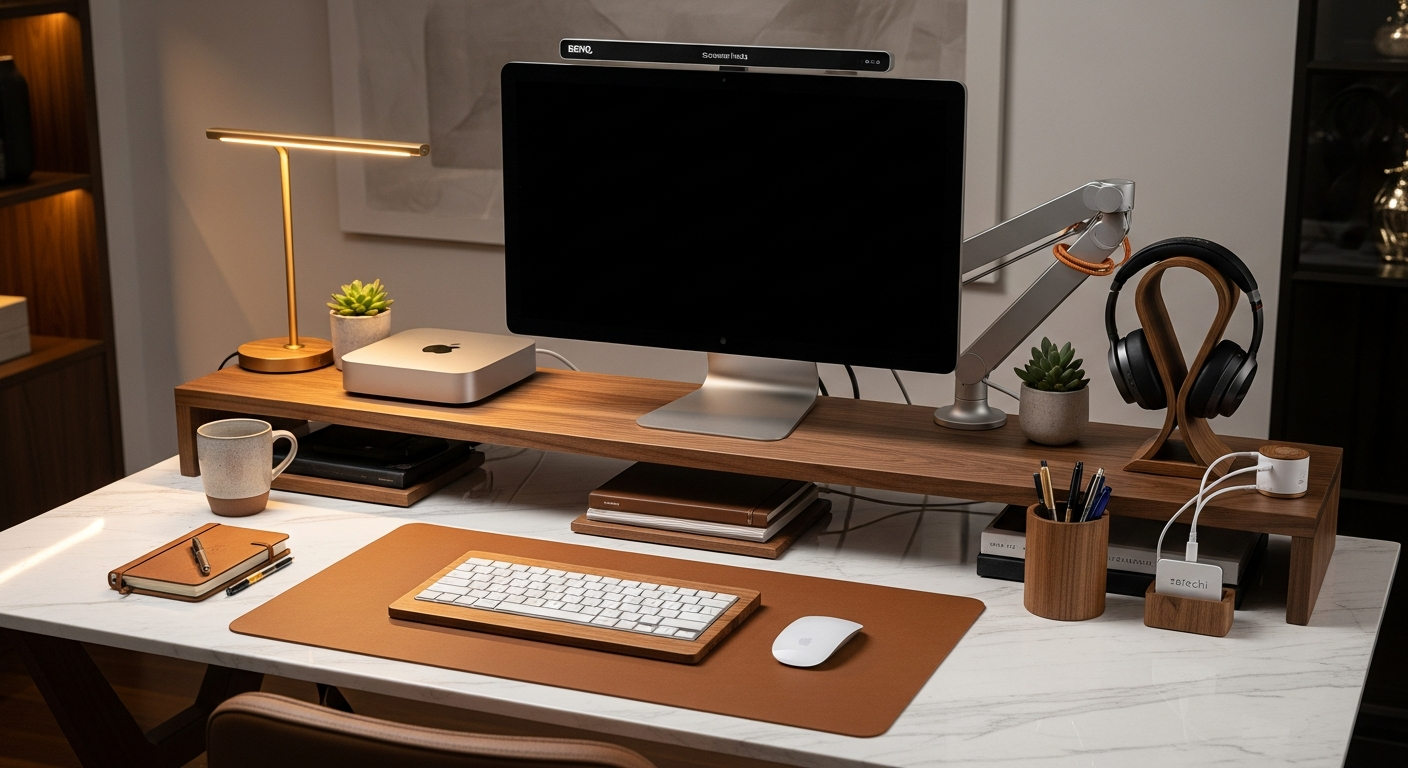
The Apple Mac Mini M2 is the right machine for this. It’s fast enough for software development, small enough to hide, and connects cleanly to a single display. There’s no tower. No GPU box. Nothing large sitting on or beside the desk. The Mac Mini itself ends up behind the monitor, completely out of sight. The desk surface holds only what I actually use.
Apple Mac Mini M2: The Hub
The M2 chip handles everything I throw at it: Xcode builds, Docker containers, browser tabs, and a 4K display simultaneously. Compile times are fast. The machine never audibly spins up fans under typical development load.
The key decision was using a VESA Mac Mini Mount to attach the Mac Mini directly to the back of the monitor arm’s VESA plate. The mount is a $29 bracket that sandwiches the Mac Mini between the VESA plate and a secondary plate. It’s solid. The Mac Mini sits behind the monitor, out of sight from any angle. The desk is completely clear of the computer.
The only evidence the Mac Mini exists are the cables running down the monitor arm column: a power cable, a USB-C cable to the hub, and a Thunderbolt cable to the monitor. The cable spine routes all three together into a single managed run.
LG 27UK850-W: The 4K Display
The LG 27UK850-W 4K Monitor is a 27-inch IPS panel at 3840x2160. For development work, the resolution improvement over 1440p is noticeable. Text is sharper. Xcode’s interface elements are denser. The additional vertical space fits more code lines without scrolling.
The monitor has USB-C with 60W power delivery on the input side. I run it via Thunderbolt from the Mac Mini rather than HDMI, which gets the full 4K at 60Hz with HDR capability. The USB-C hub connects here for peripherals.
Mounted on the monitor arm, the display sits at the correct eye height with the stand removed. The arm creates about 4 inches of desk clearance where the stand’s base would have been. This recovered space is where the desk mat extends cleanly to the back edge.
Keychron K2 Pro: macOS Compatibility Done Right
The Keychron K2 Pro is a 75% layout keyboard with full macOS keycap labeling. The function row doubles as media and brightness controls, which Keychron handles better than most third-party keyboards. The Fn key switches the top row between function keys and macOS shortcuts. No remapping required.
The K2 Pro supports both wired and 2.4GHz wireless via USB dongle, plus Bluetooth. I use Bluetooth to the Mac Mini to eliminate any cable at the desk. Battery lasts about two weeks on a charge with the backlight on.
Switches are Keychron’s own browns: tactile, not too loud for a home office environment, and noticeably better than the membrane boards that come with most desktop setups.
Logitech MX Master 3S for Mac
The Logitech MX Master 3S for Mac is the one peripheral where macOS-specific tuning matters most. The macOS version includes horizontal scrolling on the thumb wheel mapped to back/forward navigation, which is genuinely useful in browsers and Finder. The main scroll wheel’s MagSpeed mechanism is fast and precise. The side buttons are customizable via Logi Options+.
It connects via Bluetooth or the included USB receiver. I use Bluetooth, keeping the USB receiver available for a second machine. The pairing button on the bottom switches between three saved devices instantly.
Anker USB-C Hub: All Connectivity in One Place
The Anker USB-C Hub 7-in-1 sits on the underside of the desk via the cable tray and handles all peripheral connections. USB-A ports handle the keyboard dongle backup and an external drive. The SD card slot handles camera imports. A USB-C passthrough port stays free for device charging.
The hub connects to the Mac Mini via a single USB-C cable. The Mac Mini’s remaining ports stay open at the back for peripherals that don’t need frequent disconnection.
BenQ ScreenBar and Desk Mat
The BenQ ScreenBar clips to the monitor top and illuminates the desk without any screen reflection. For late-evening development sessions, the auto-dimming keeps the desk lighting proportional to the room. It’s the one accessory that changes how the setup feels to use every day.
The XL dark desk mat anchors the layout. The dark cloth surface matches the overall color palette of the setup and covers the area from the keyboard to the mouse edge without overlapping. The monitor arm’s feet and the cable spine sit outside the mat boundary.
What I’d Change
I’d upgrade the monitor. The LG 27UK850-W is capable, but it shows its age in color accuracy and HDR performance. A 27-inch monitor with proper local dimming or an OLED panel would be a meaningful improvement for both development and design work.
I’d also add a second USB-C cable run from the Mac Mini directly to the desk for faster device charging. The current hub handles everything, but a dedicated charging cable at the desk edge would be more convenient than reaching to the cable tray.
Gear in This Setup
Apple Mac Mini M2
$599
LG 27UK850-W 4K Monitor
$379
Keychron K2 Pro Keyboard
$99
Logitech MX Master 3S for Mac
$99
BenQ ScreenBar Monitor Light
$109
VESA Mac Mini Mount
$29
Anker USB-C Hub 7-in-1
$49
Cable Management Spine
$35
XL Desk Mat (Dark)
$35
Monitor Arm for Mac Setup
$147